You need to have PuTTY installed. You need to have a public/private key pair already generated. The public key needs to be installed on your device (TrueNAS Scale).
2. Configure PuTTY to use public/private key authentication.
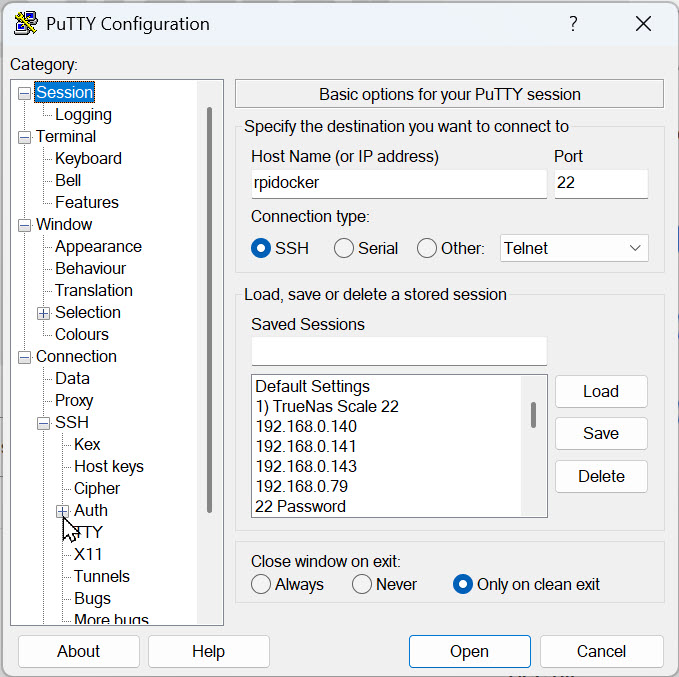
Start PuTTY and enter the IP address (or hostname) of your device. Then, in the left pane, click on the + sign next to SSH to open it up.
Do the same with the + symbol next to Auth.
This will expand the Auth category and reveal the Credentials option — click it.
Use the Browse button to link to your private key file. Now scroll back up to Session in the left pane and select it.
Enter a name for your device in Saved Sessions and click Save.
3. Testing the SSH connection
Either click Open or double-click directly on the name of the device you want to connect to. If the connection initiates successfully and this is the first time you have connected to the device, you will receive a warning.
As we know this is not a risk, click Accept. You will then be prompted to enter the username (and passphrase for your private key if you entered one).