Note that SSH is considered insecure, but if you must log into the console remotely, then using keys is more secure than passwords. A key pair is cryptographically stronger than any password you could type, and disabling password login entirely means that even a leaked password cannot be used to access your NAS remotely.
1. Prerequisites
If you have been following along you should have completed the initial install of TrueNAS Scale and the early configuration. All configurations of TrueNAS Scale should be undertaken through the GUI but occasionally it is useful to log in to a shell command line. Next, we will configure login using a public/private key. We can then disable password login for the admin user, thus enhancing security. First you need to generate the SSH keys. The easiest way to do this is to use PuTTY. This is described here: How to generate a Public/Private key pair using PuTTY.
2. Configure TrueNAS Scale for SSH.
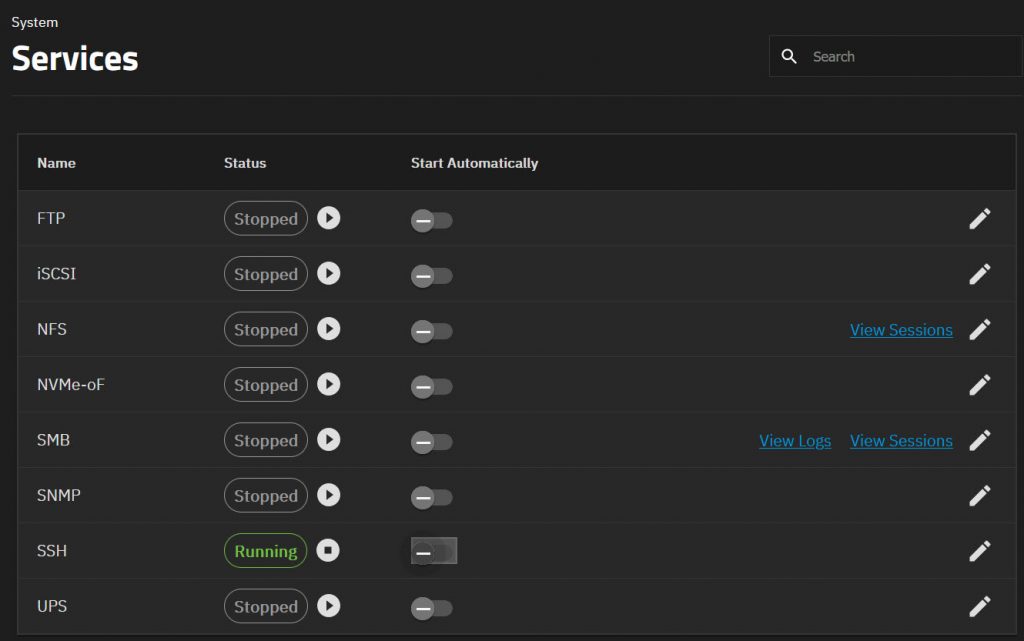
In TrueNAS Scale navigate to System > Services and enable SSH by clicking the play button
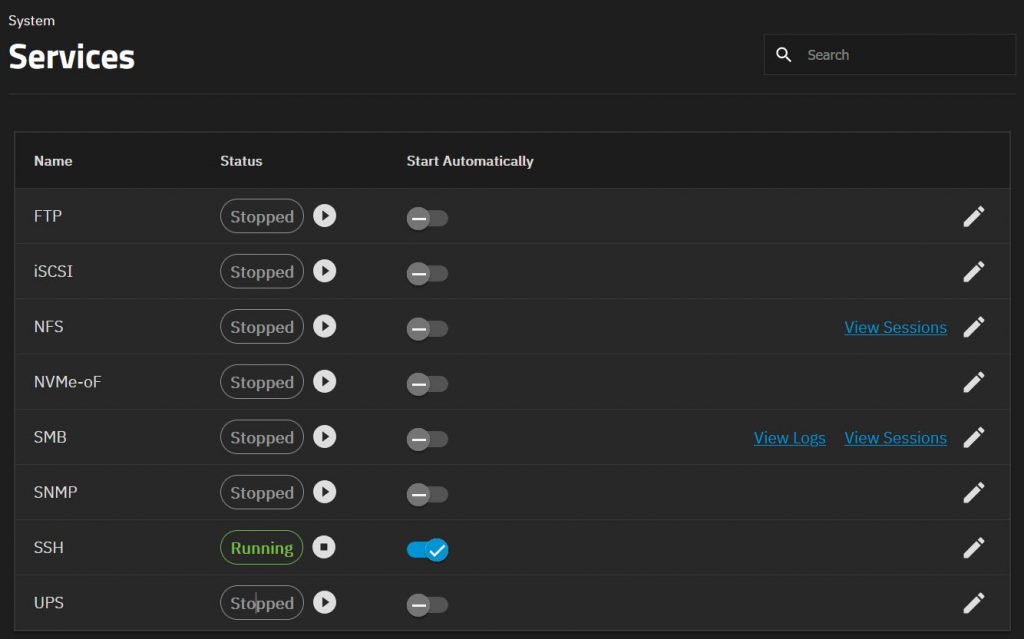
You will also want the service to start automatically so enable this as well.
3. Configure users to use SSH with key-based authorization
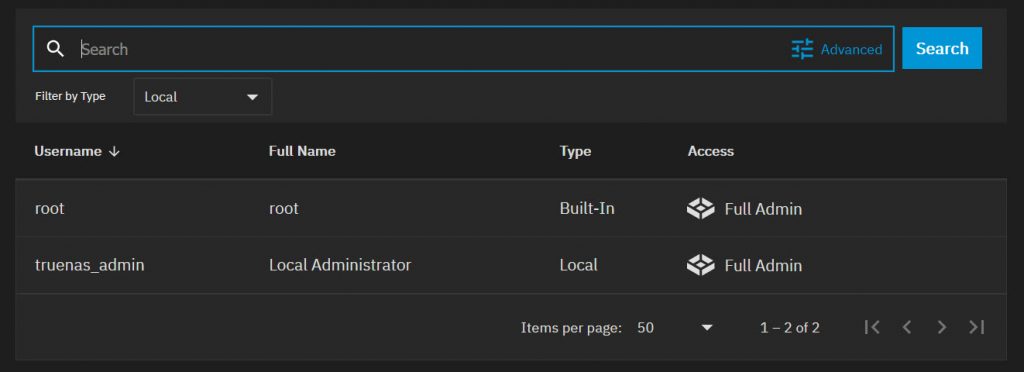
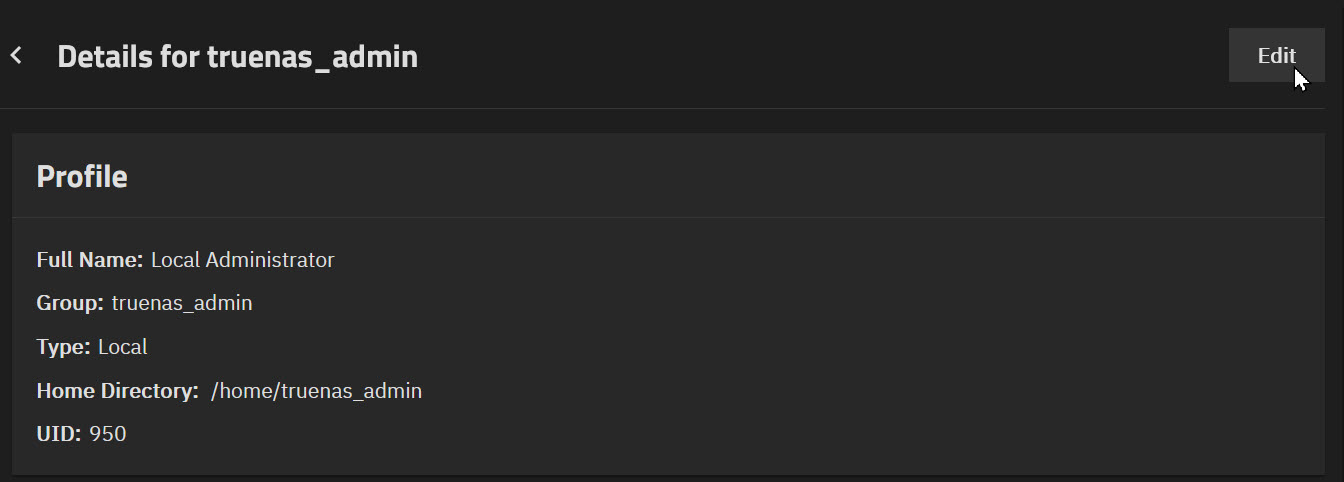
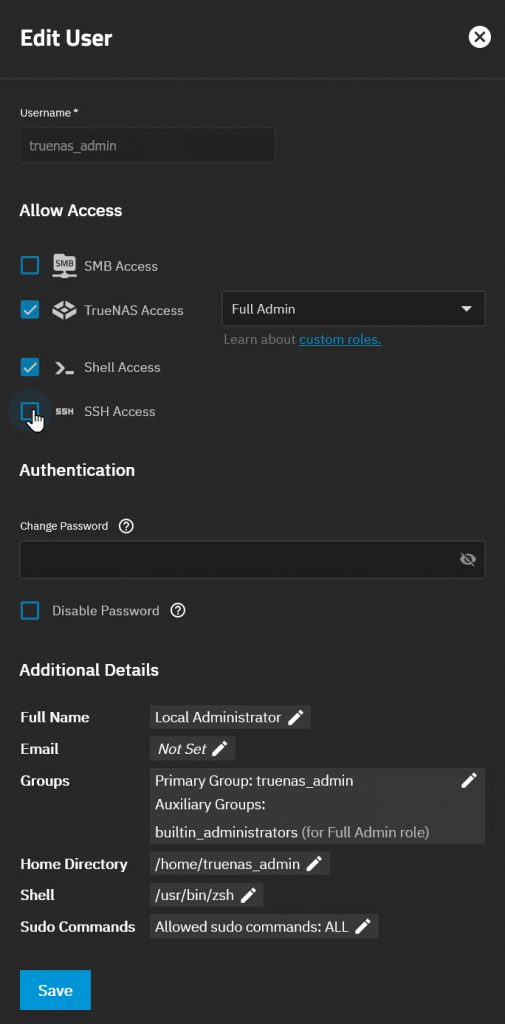
In TrueNAS Scale navigate to Credentials > Users and click on truenas_admin user. Then select Edit.
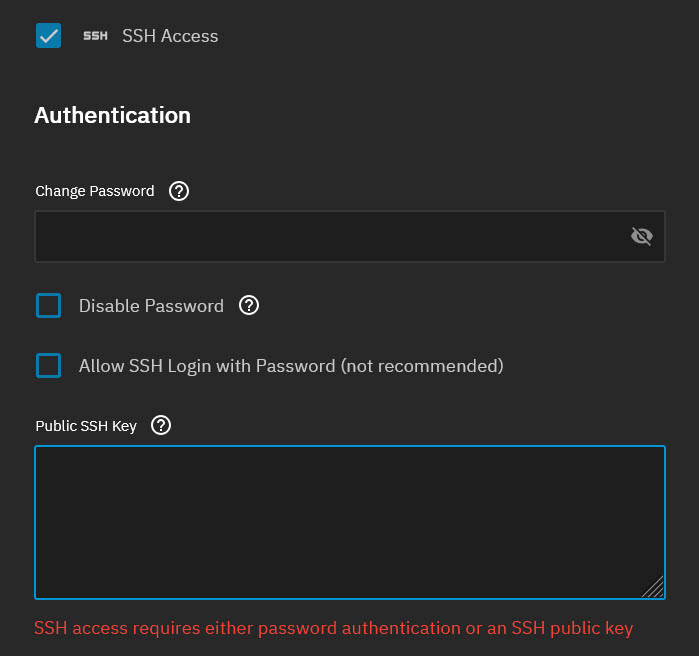
Now enable SSH Access by clicking the box.
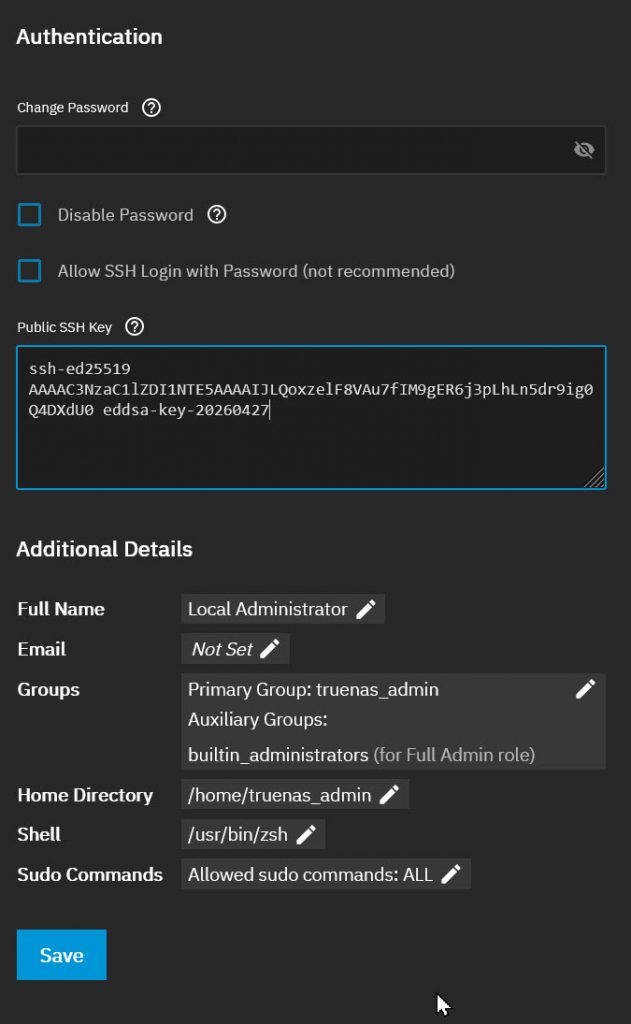
You can now paste the public key you generated here into the Public SSH Key box followed by the Save button.
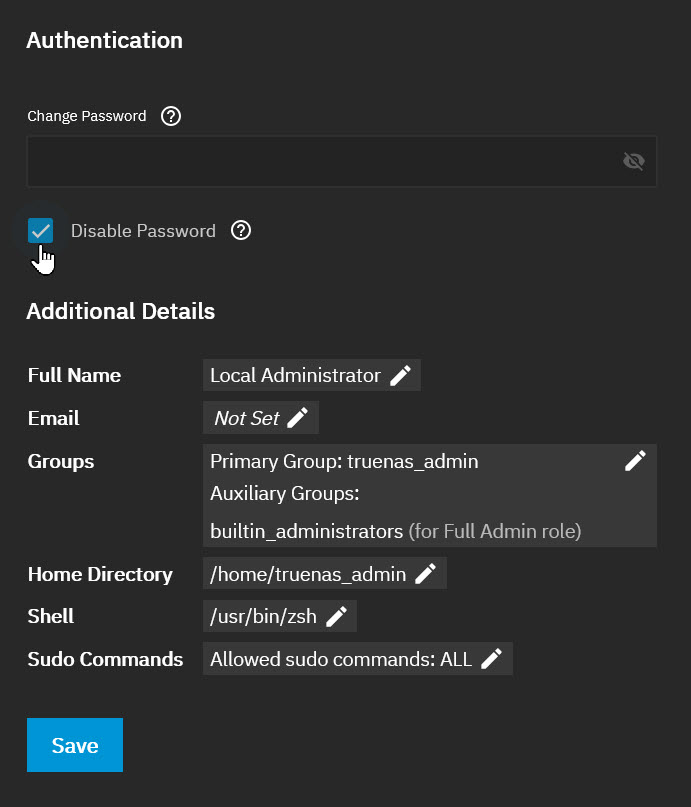
Once you are happy that key-based login is working, disable password login. Once again, go to Credentials > Users > click the truenas_admin user and click Edit. Select Disable Password and click Save.