This guide walks you through installing PuTTY and making your first SSH connection to a Linux device.
Before you start, you’ll need:
A Windows PC
A Linux device on the same local network (e.g. a Raspberry Pi, TrueNAS box, or any Linux server)
The IP address of that device — check your router’s admin page if you’re not sure what it is
SSH (Secure Shell) is a network protocol for securely logging in to and running commands on a remote Linux device — PuTTY is the most popular Windows client for doing exactly that.
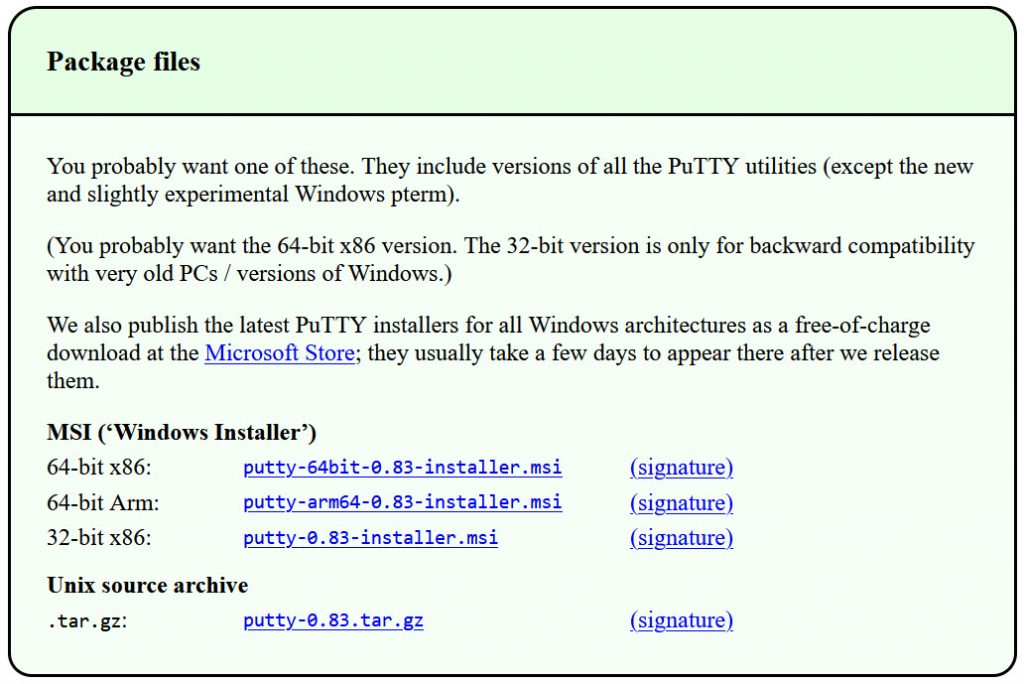
Download the appropriate .msi file. (If you are not sure which version you require, check out the FAQ here.)
Install in the usual way. It is safe to accept the defaults.
Once installed, start PuTTY, and you will see the following:
2. Connect to the Linux device using SSH
To test the connection, type the IP address of your Linux device in the Host Name box. (Alternatively, you might be able to use the hostname of the Linux device, but the IP address is easier if you don’t have your naming system established.)
Click ‹Open›
As this is the first time you have connected to this device, you will receive a security warning:
As you know, it is safe to connect, click ‹Accept›. The key will then be stored in your computer’s registry, and you will not be prompted again.
You will then be prompted for the user name and password. So log in with your username and password. Note that both the username and password are case sensitive. The image below shows a Raspberry Pi login.
3. Saving a session
OK, we know the settings work, let’s save them to make it easier next time. Close the current session (click the X in the top right-hand corner of the window). Restart PuTTY.
Enter the IP address again and a session name, then click ‹Save›. The session will appear in the Saved Sessions box:
Now you can simply double click on the Saved Session to open an SSH session with your Linux device. PuTTY does not offer the facility to save login/passwords as this would represent a security risk; you can however, use a public/private key combination.